
How to enter your PT results – Lake Balance Calibration Solutions
A quick walkthrough of entering and submitting your proficiency test results in the Lake Balance PT portal.
The screenshots use sample data (a demonstration lab and made-up readings), not real results.
1Sign in and open your PT
Sign in to the Lake Balance PT portal. Your Active PTs & next steps list shows your test, with Submit measurements as the next step. Click it to open your PT. (You can also open it from My Tests in the left menu.)
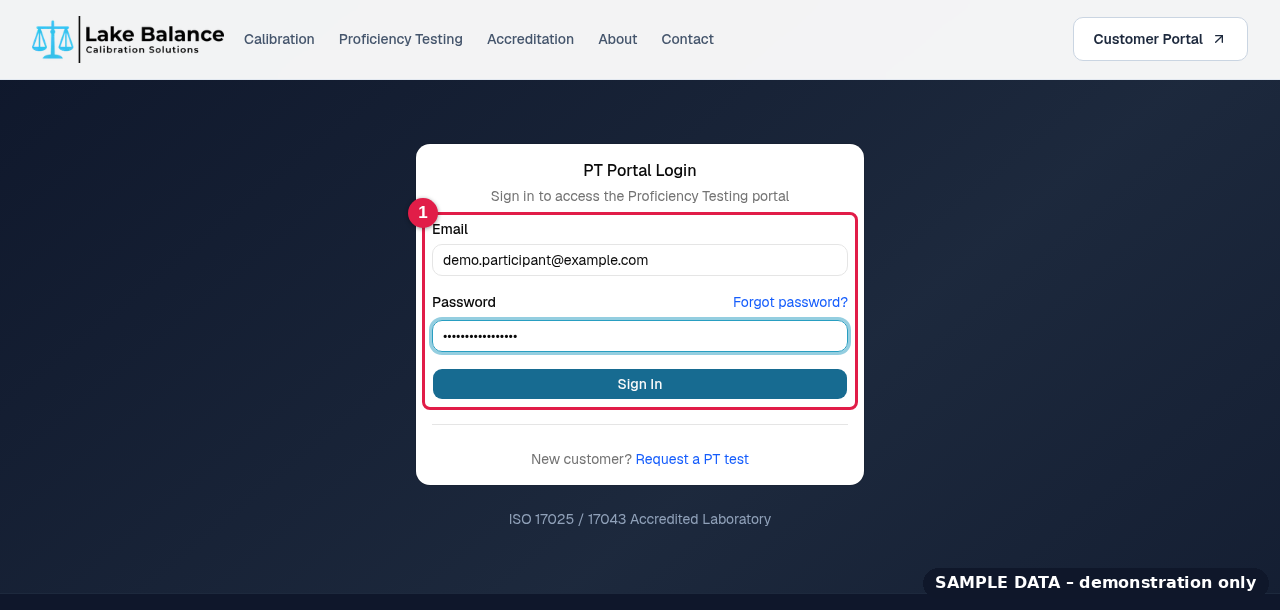
- 1Enter your portal email and password, then click Sign In.
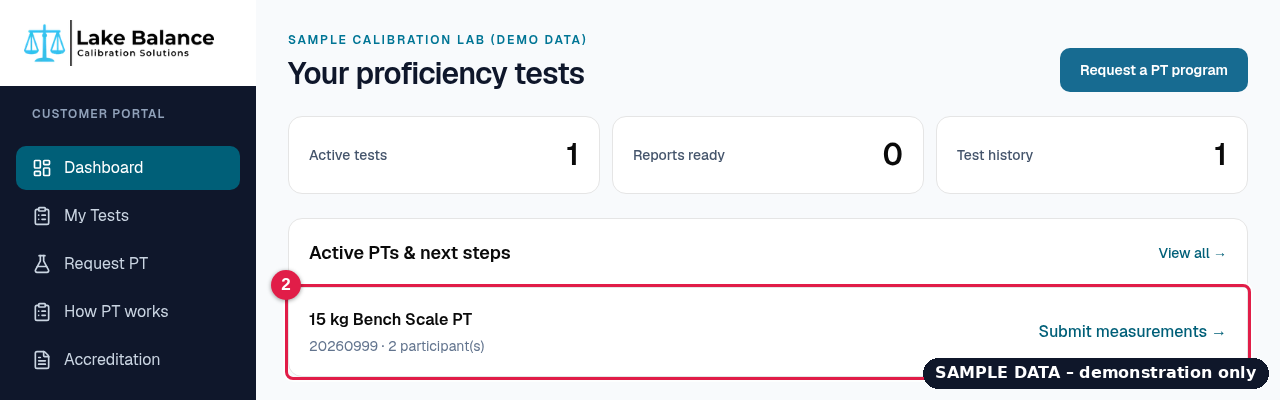
- 1Click your PT in Active PTs & next steps.
2Go to the results section of your PT
On your PT page, click Enter measurements. It takes you to the Your measurements section, where you enter your results. There is one set of results for each participant, shown as tabs at the top.
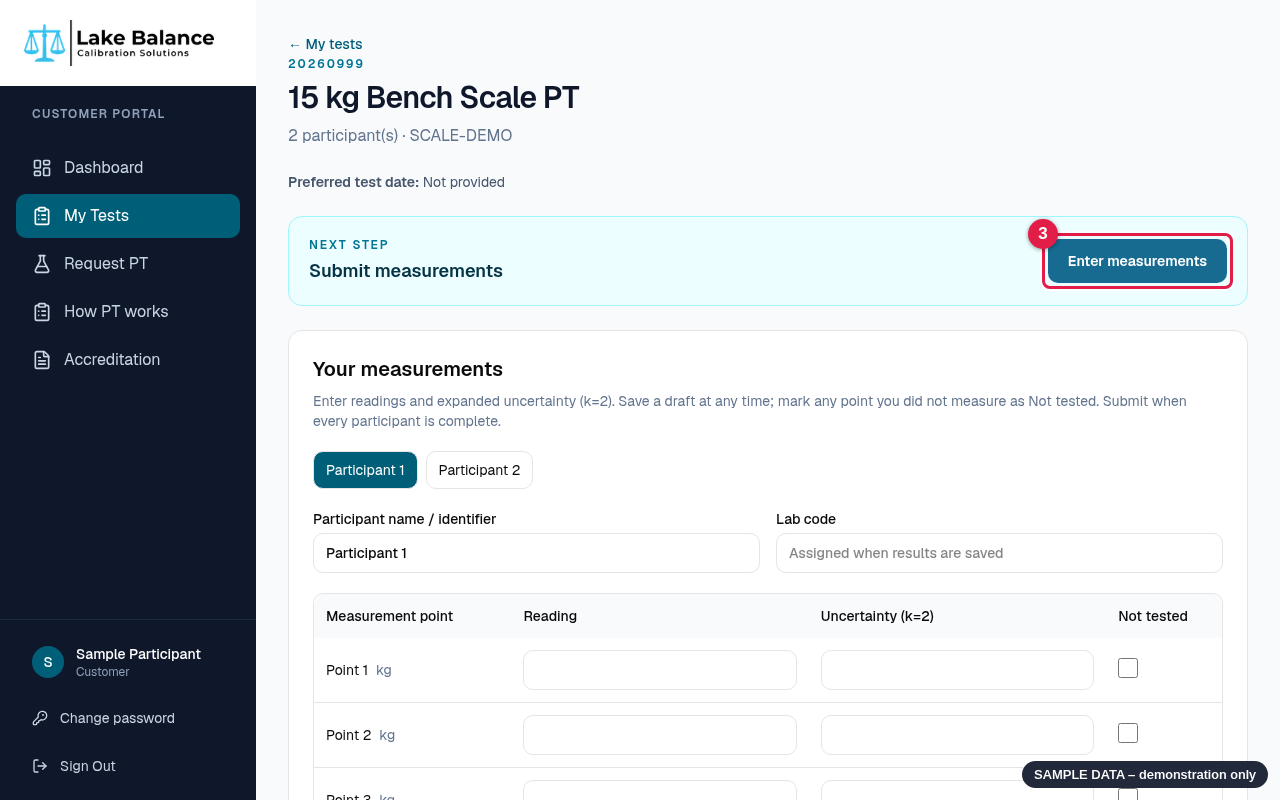
- 1Click Enter measurements to jump to your results form.
3Enter your reading and uncertainty for each point
Pick a participant tab (Participant 1, Participant 2, and so on). For each Measurement point, enter your Reading and your expanded Uncertainty (k=2). Enter both values for every point. You can rename a participant in the Participant name / identifier box.
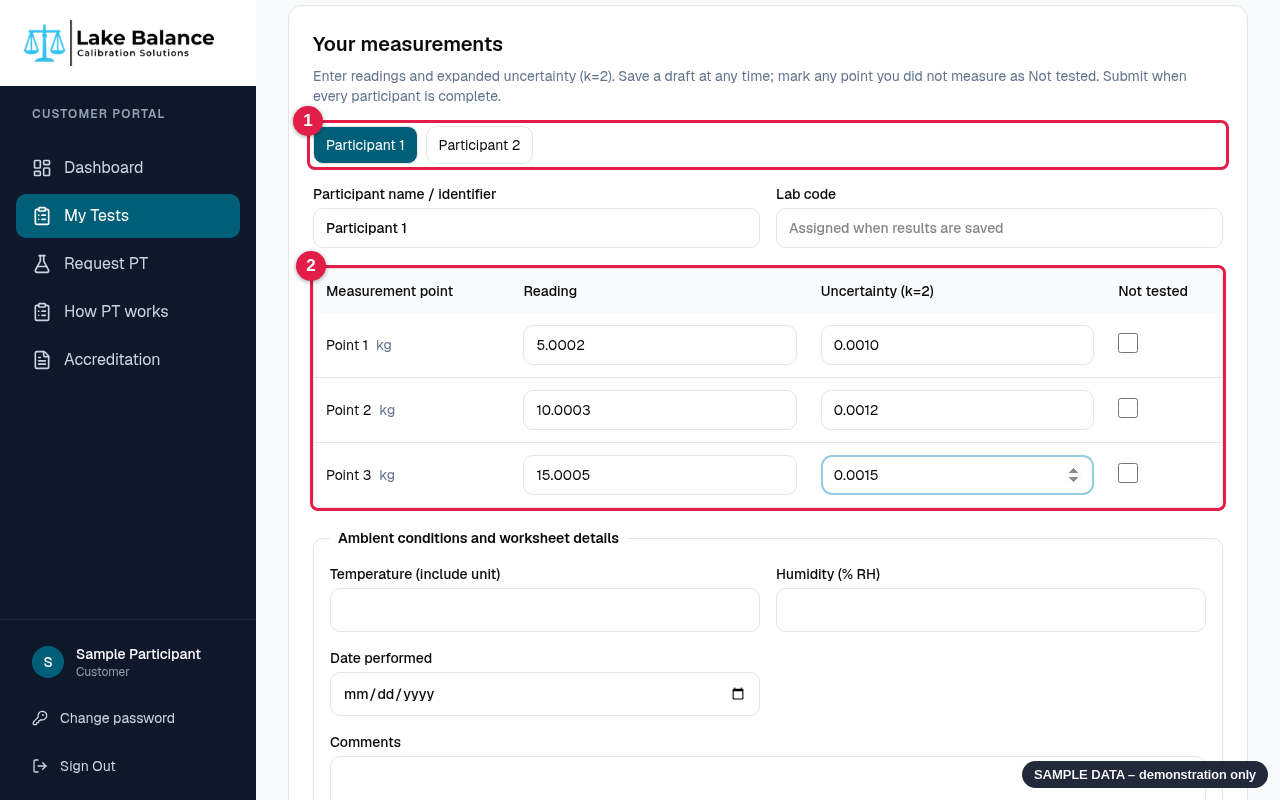
- 1Participant tabs: one result set per participant. Repeat the steps below for each tab.
- 2Reading and uncertainty (k=2) for each measurement point.
4Add the ambient conditions and worksheet details
Below the table, fill in Temperature (include the unit), Humidity (% RH), Date performed, and any Comments.
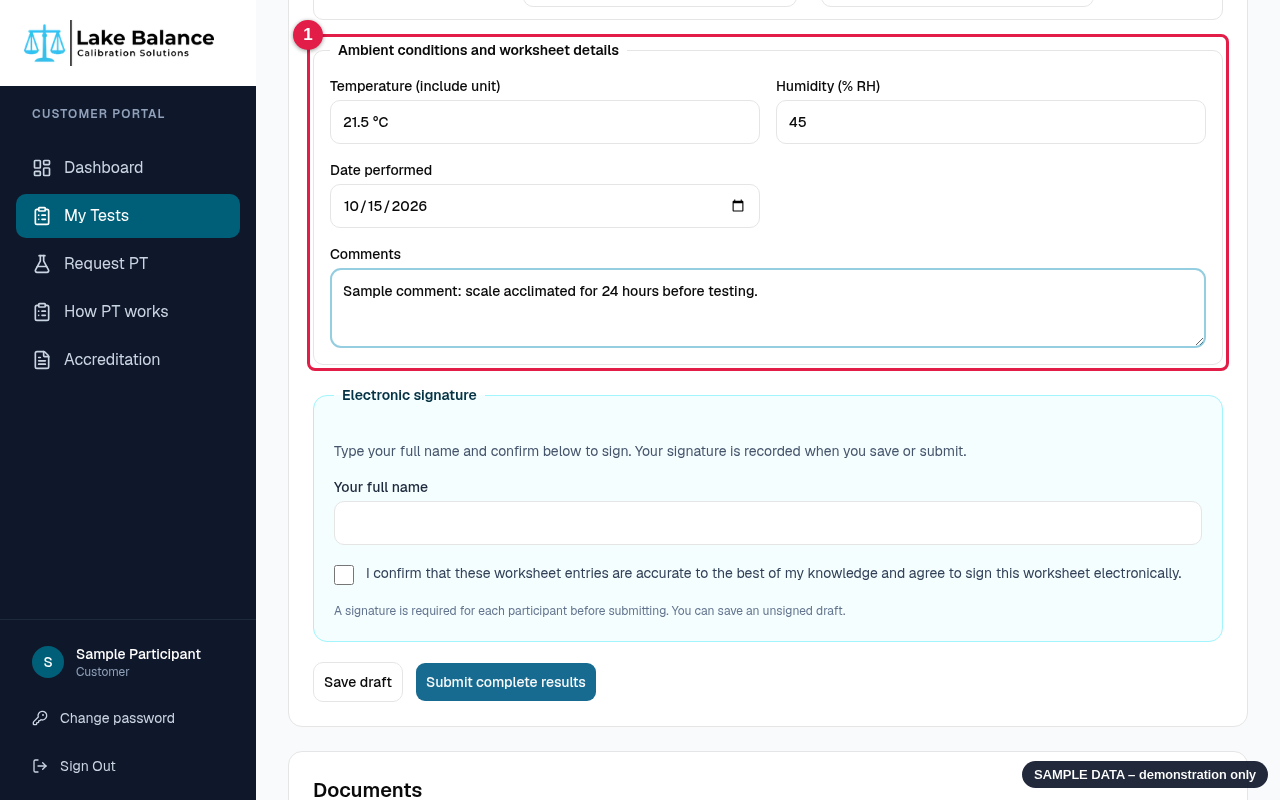
- 1Temperature, humidity, date performed and comments.
5Sign the worksheet electronically
In the Electronic signature box, type your full name and tick the confirmation box. A signature is required for each participant before you can submit. You can save an unsigned draft.
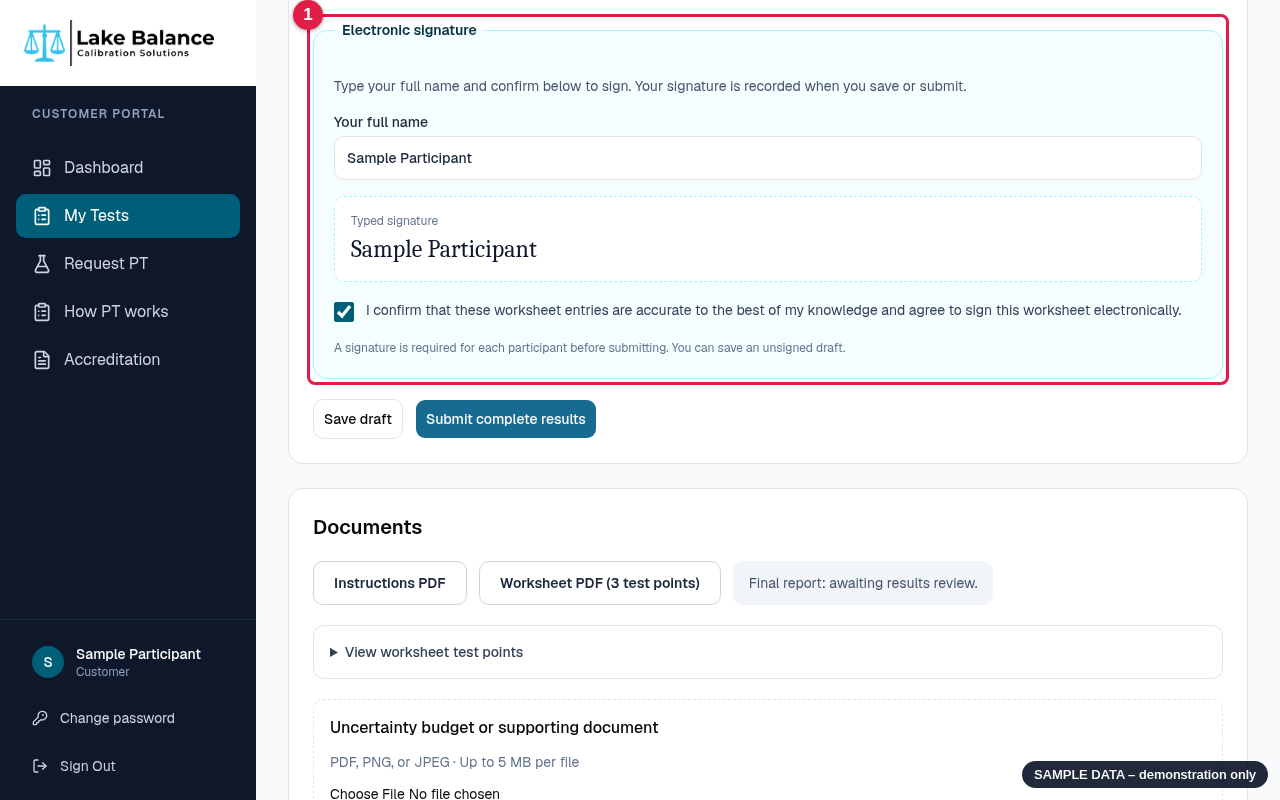
- 1Type your full name and confirm the statement to sign.
6Save a draft, then submit when everyone is done
Click Save draft at any time to keep your work and come back later. Your entries stay in place, and a Lab code is assigned to each saved participant. When every participant has all points entered and signed, click Submit complete results. If something is missing, a red message tells you what to fix.
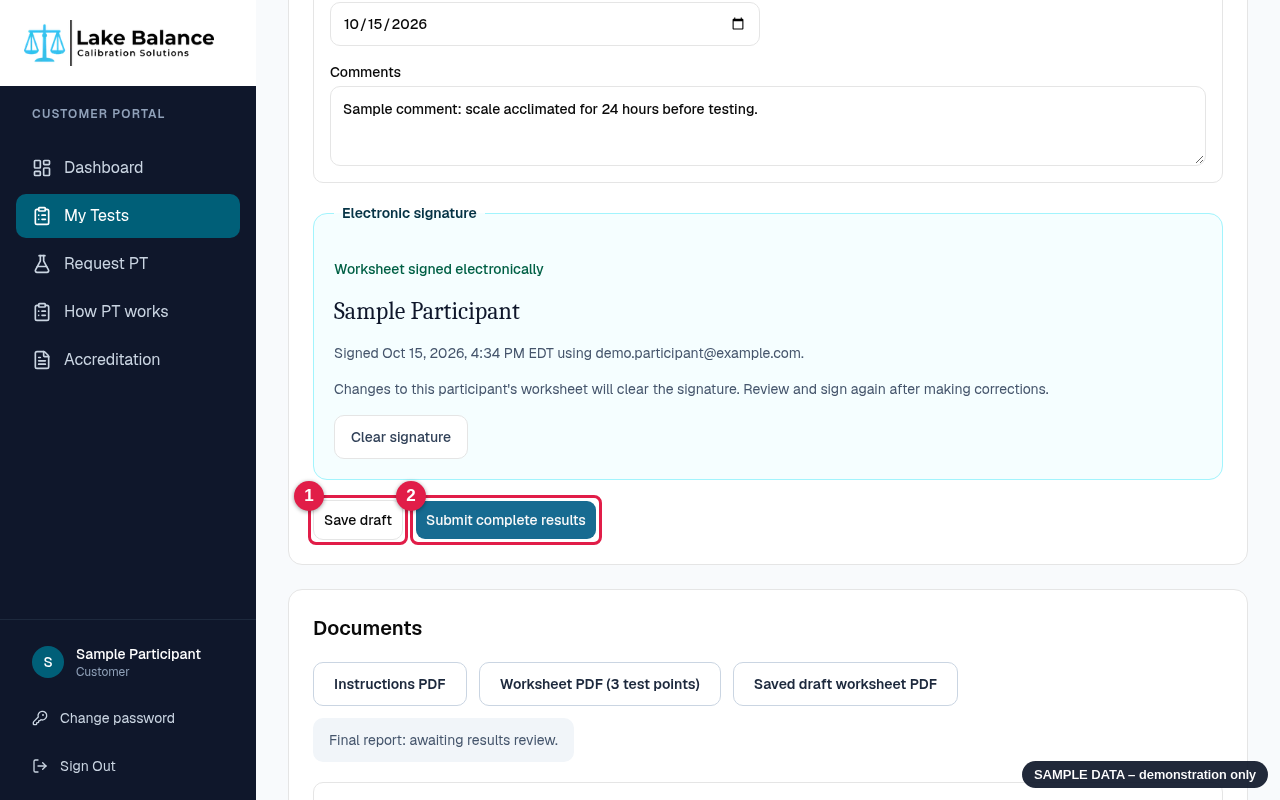
- 1Save draft: keep your work without submitting.
- 2Submit complete results: send everything to Lake Balance for review.
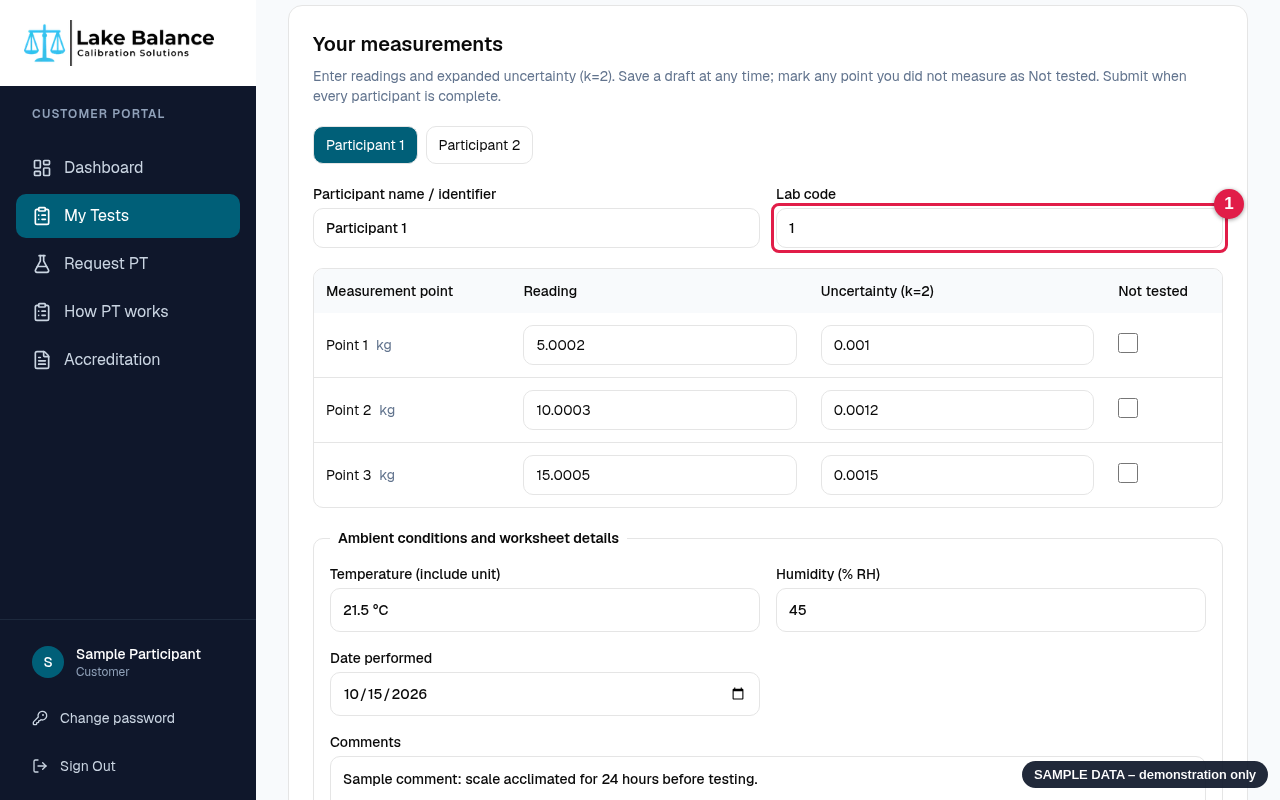
- 1After saving, your entries remain and the Lab code is filled in.
7After you submit
Your PT now shows Results are being reviewed and a Submitted measurements table. To correct a submitted value, use the Contact our team link on that page. If you have an uncertainty budget or other supporting document, you can upload it under Documents (PDF, PNG or JPEG, up to 5 MB).
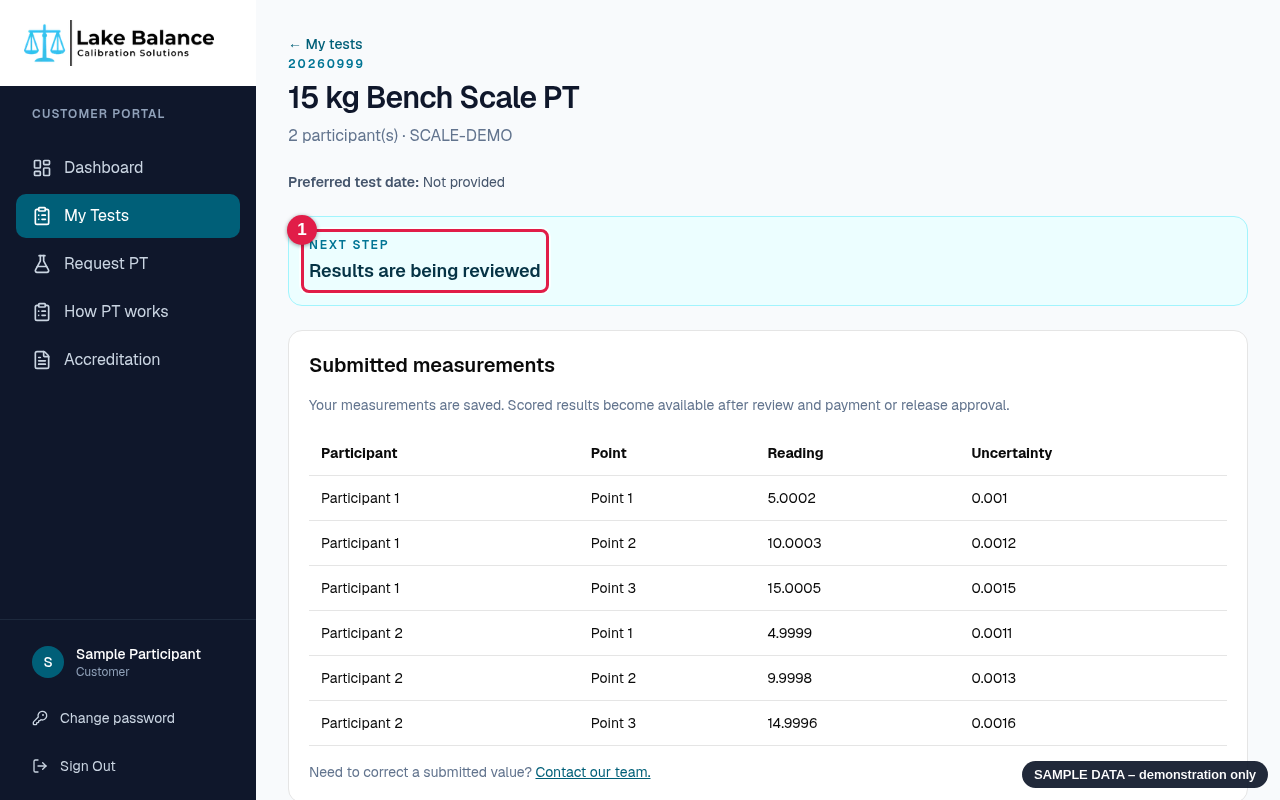
- 1Status changes to Results are being reviewed.
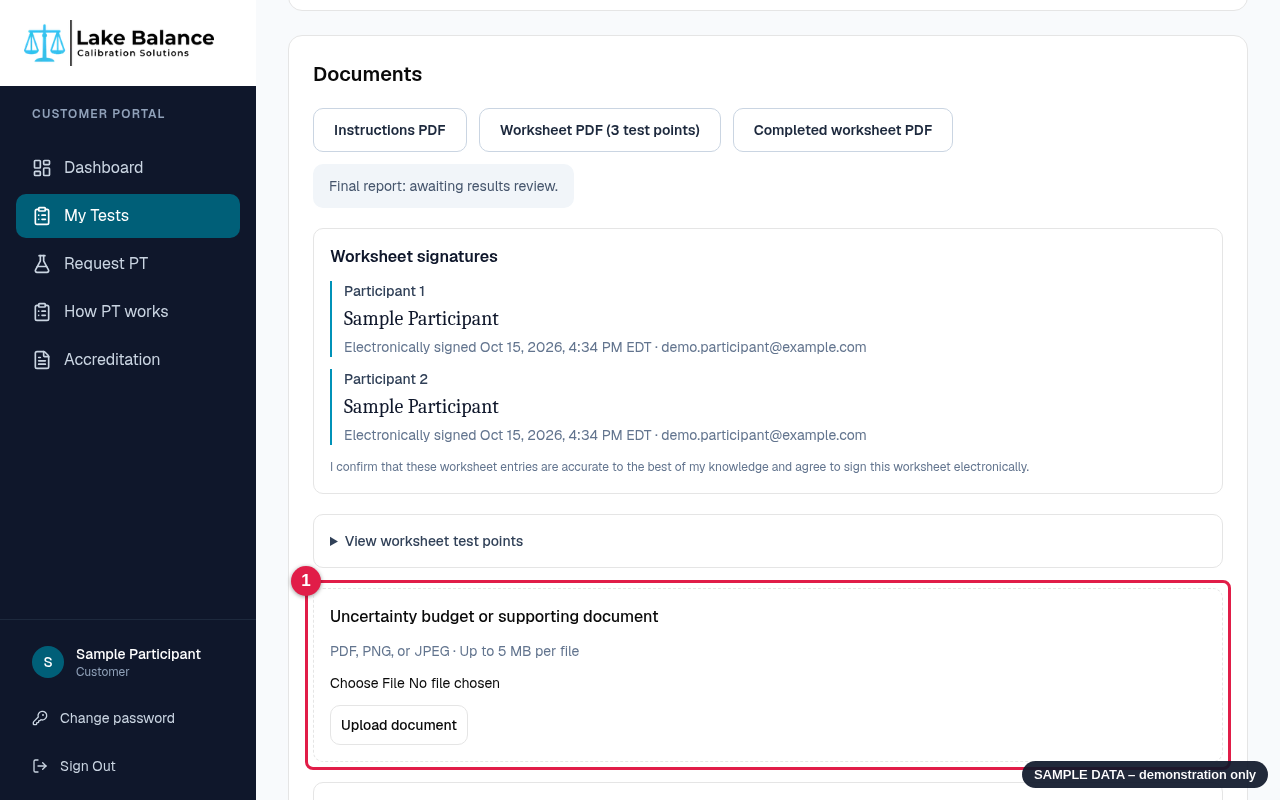
- 1Optional: upload your uncertainty budget or a supporting document.
8Your pass/fail result and report
As soon as Lake Balance reviews your results, your PT page shows Your PT result: Pass or Fail overall and for each participant, with how many points passed. It appears right away, before the kit is on its way back. The En value for each point and the final report are released once payment is received and the kit's return shipment shows in transit with the carrier. Questions about payment? Use the Contact billing link on the page.
Lake Balance Calibration Solutions · 7722 Metric Drive, Mentor, OH 44060